- Published on
SitecoreAI Gotcha: SPE Scripts Blocked by the Cloudflare WAF
- Authors

- Name
- Mark Gibbons
- @markgibbons25
I've come across this issue a few times recently when running certain SPE scripts:
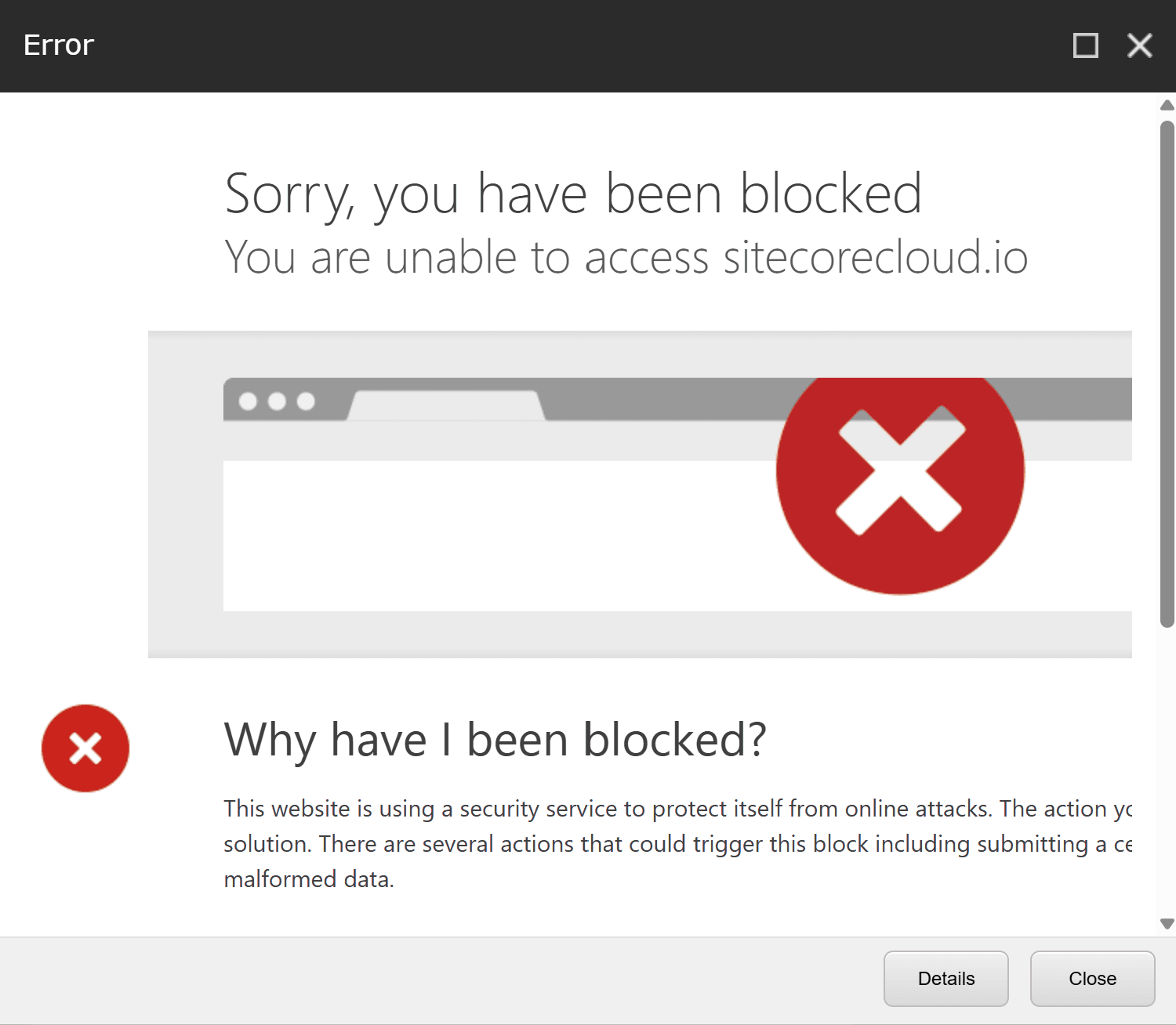
This is a standard Cloudflare WAF block page. Cloudflare fronts everything on sitecorecloud.io and so if it detects any common OWASP injections it will block them.
There is a Cloudflare Ray ID on that error message which you could theoretically raise to Sitecore support to get the exact Cloudflare rule that was triggered, but no doubt that would be a time consuming exercise. There could be many likely causes - (e.g. Invoke-WebRequest, Invoke-Expression, encoded strings, SQL-ish text, <script> tags, file paths). You could try and hunt those down, but I have a couple of good options.
I'll note of course that I assume you have access and permission to be running SPE scripts on the intended environment, this method won't help you if you don't.
Workaround 1: Put it in the SPE toolbox
The SPE docs walk through adding a script to the Toolbox. You can simply ask your AI agent to do that for you if you have the Sitecore Community MCP.
Once the script lives in the library, it appears under Start → PowerShell Toolbox in the Content Editor. You can then use SCS or similar to push the item up to the cloud environment. A gotcha if you do that is for the script to show up, Sitecore needs an item saved event to happen in the Toolbox folder that you would have created if you followed this method, which doesn't get triggered if you do an SCS push.
Workaround 2: Base64 encode / decode
Encode the payload on your own machine first:
# Run locally (desktop PowerShell), pointing at the script you want to run:
$enc = [Convert]::ToBase64String(
    [Text.Encoding]::UTF8.GetBytes((Get-Content '.\YourScript.ps1' -Raw))
)
@"
Invoke-Expression ([Text.Encoding]::UTF8.GetString([Convert]::FromBase64String(
'$enc'
)))
"@ | Set-Content '.\YourScript.b64.ps1' -Encoding UTF8
Then paste the generated *.b64.ps1 wrapper into the ISE and run it; behavior is identical to the original script. Regenerate the wrapper whenever you edit the source.
Which one to use
Of course both methods have a few steps, so perhaps try them out and see which has less friction for you.